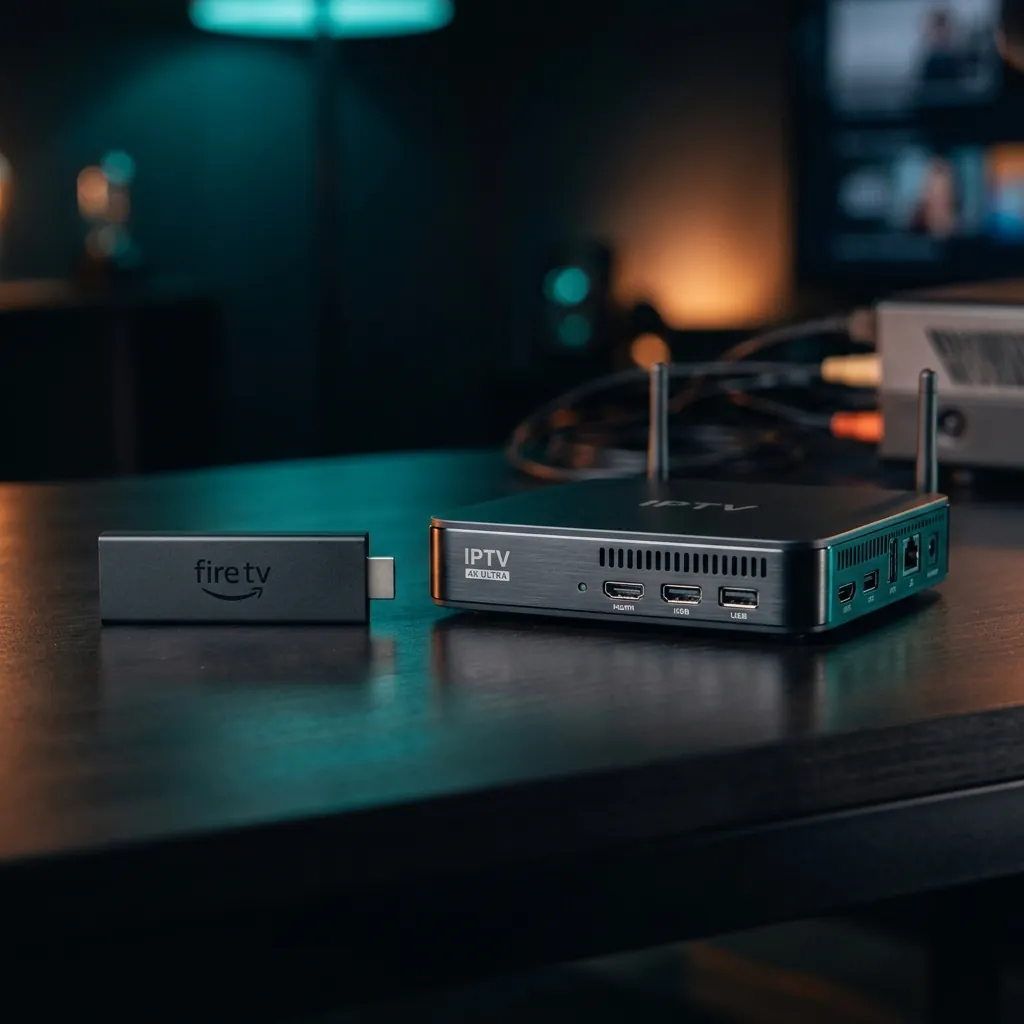
Best IPTV for Firestick: Top Apps & Setup Guide for 2026
Updated June 2026 with current pricing, channel listings and UK setup steps. The Amazon Firestick is the most popular device for watching IPTV in the United Kingdom, and it is easy to see why. For under £30, you get a compact streaming stick that plugs into any TV with an HDMI port and delivers smooth, high-quality IPTV playback over WiFi. Combined with the right IPTV app and a reliable IPTV subscription, your Firestick becomes a complete cable TV replacement.
This guide covers the best IPTV player apps available for Firestick, how to install them step by step, performance tips for buffer-free streaming, and how the Firestick compares to dedicated IPTV boxes for serious viewers.
Top IPTV Apps for Amazon Firestick
Your IPTV experience on Firestick depends heavily on the player app you choose. The app is the interface between your subscription and your screen — it determines how channels look, how fast they switch, and whether you get features like catch-up TV and recording. After testing every major IPTV app on Firestick, these are our top recommendations for UK viewers in 2026:
TiviMate
Our Top PickTiviMate is widely regarded as the best IPTV player for Firestick and Android devices. It offers a polished, TV-like interface with a full electronic programme guide (EPG), catch-up TV support, the ability to record live channels, and multi-screen picture-in-picture viewing. The free version is functional, but the premium version (a one-time purchase of around £5) unlocks recording, multiple playlists, and an ad-free experience.
IPTV Smarters Pro
IPTV Smarters Pro is the most beginner-friendly option. Many IPTV providers pre-configure their services for Smarters, meaning you can log in with just a username and password without dealing with M3U playlist URLs. The interface is clean and straightforward, making it ideal for non-technical users. It supports EPG, catch-up, and series organisation.
OTT Navigator
OTT Navigator is a powerful alternative with deep customisation options. It supports multiple playlist formats, advanced EPG management, and granular settings for video playback. The learning curve is steeper than TiviMate or Smarters, but experienced users appreciate the level of control it provides. Available free on the Amazon Appstore.
For a broader comparison that includes Windows, iOS, and Android options, read our complete IPTV player guide.
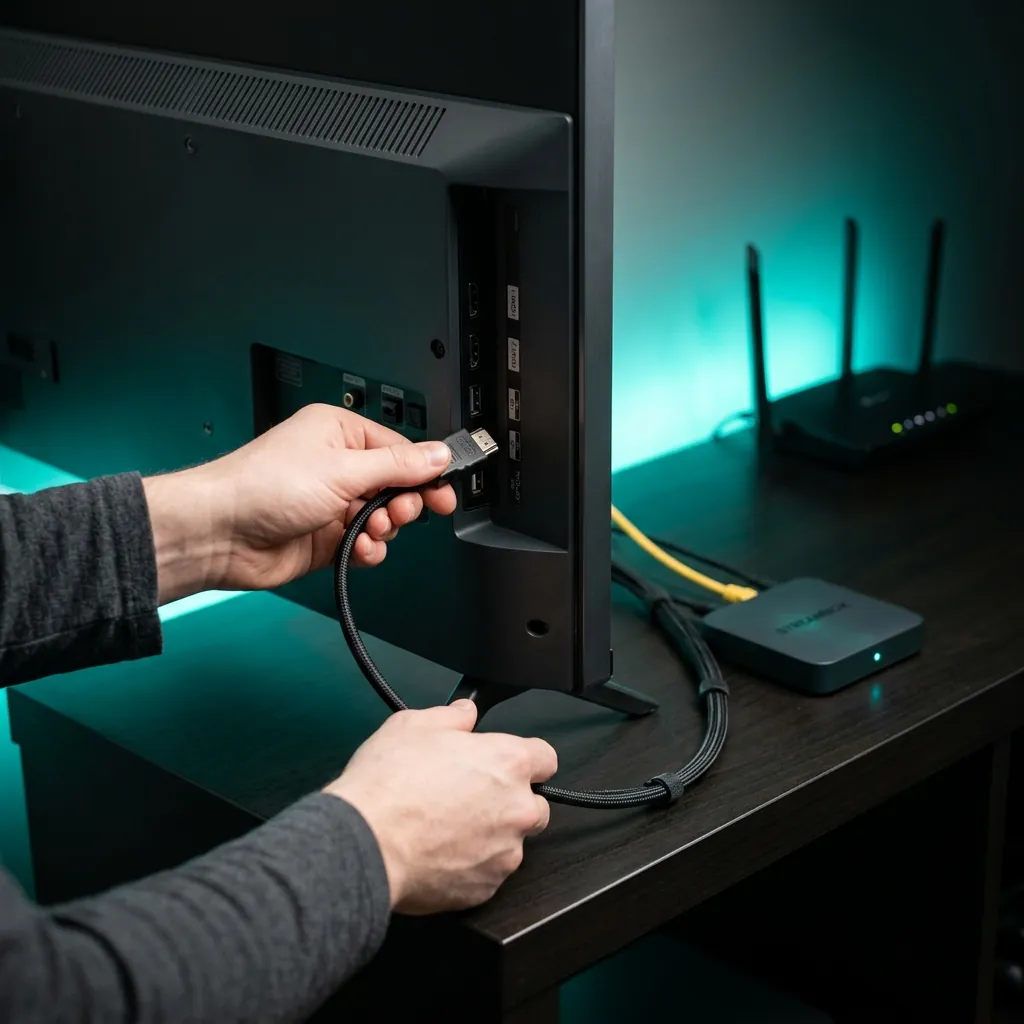
How to Install IPTV on Firestick
Installing an IPTV app on your Firestick takes about five minutes. The process is slightly different depending on whether the app is available directly on the Amazon Appstore or whether you need to sideload it.
Quick Installation Steps (Amazon Appstore Apps)
Some apps like TiviMate Premium are not available directly on the Amazon Appstore and need to be sideloaded using the Downloader app. This involves enabling “Apps from Unknown Sources” in your Firestick settings, installing the Downloader app from the Appstore, and using it to download the APK file from the developer's website.
Our detailed IPTV setup tutorial includes screenshots and covers sideloading, troubleshooting, and configuration for every Firestick model. If you do not have an IPTV subscription yet, start with an IPTV 1-month trial to test the experience before paying.
Firestick Performance Tips for IPTV
The Firestick is a capable device, but it has limited processing power compared to dedicated IPTV boxes. These optimisation tips will ensure smooth, buffer-free IPTV playback:
Use a wired ethernet connection
WiFi is convenient but ethernet is more stable. Amazon sells a Firestick ethernet adapter for about £15 that eliminates WiFi interference and reduces buffering significantly.
Clear cache regularly
Go to Settings → Applications → Manage Installed Applications → select your IPTV app → Clear Cache. Built-up cache data slows down channel switching and EPG loading.
Disable unnecessary Firestick features
Turn off Data Monitoring, App Usage Data collection, and automatic updates in Settings → Preferences. These background processes consume bandwidth and processing power.
Use the Firestick 4K Max or newer
The basic Firestick Lite struggles with HD IPTV streams. The 4K Max has a faster processor, more RAM, and WiFi 6E support. The performance difference for IPTV is dramatic.
Keep your Firestick cool
IPTV streaming generates heat over long sessions. Ensure your Firestick has good airflow — do not hide it behind your TV in an enclosed space. Overheating causes stuttering and crashes.
If you are still experiencing issues after these optimisations, read our comprehensive guide to fixing IPTV buffering which covers ten additional solutions including DNS changes, VPN configuration, and buffer size adjustments.
Free vs Paid IPTV on Firestick
You do not necessarily need a paid IPTV subscription to enjoy live TV on your Firestick. Several free and completely legal options are available directly from the Amazon Appstore:
You can also use your Firestick for Freeview on Firestick — accessing all UK free-to-air channels without an aerial or any subscription. For more free options, see our free streaming services guide.
Paid IPTV subscriptions offer the advantage of premium sports channels, a wider range of international channels, a single unified interface with EPG for everything, and catch-up and recording features that free apps lack. Whether the cost is worth it depends on your viewing habits — our IPTV vs cable comparison helps you decide.
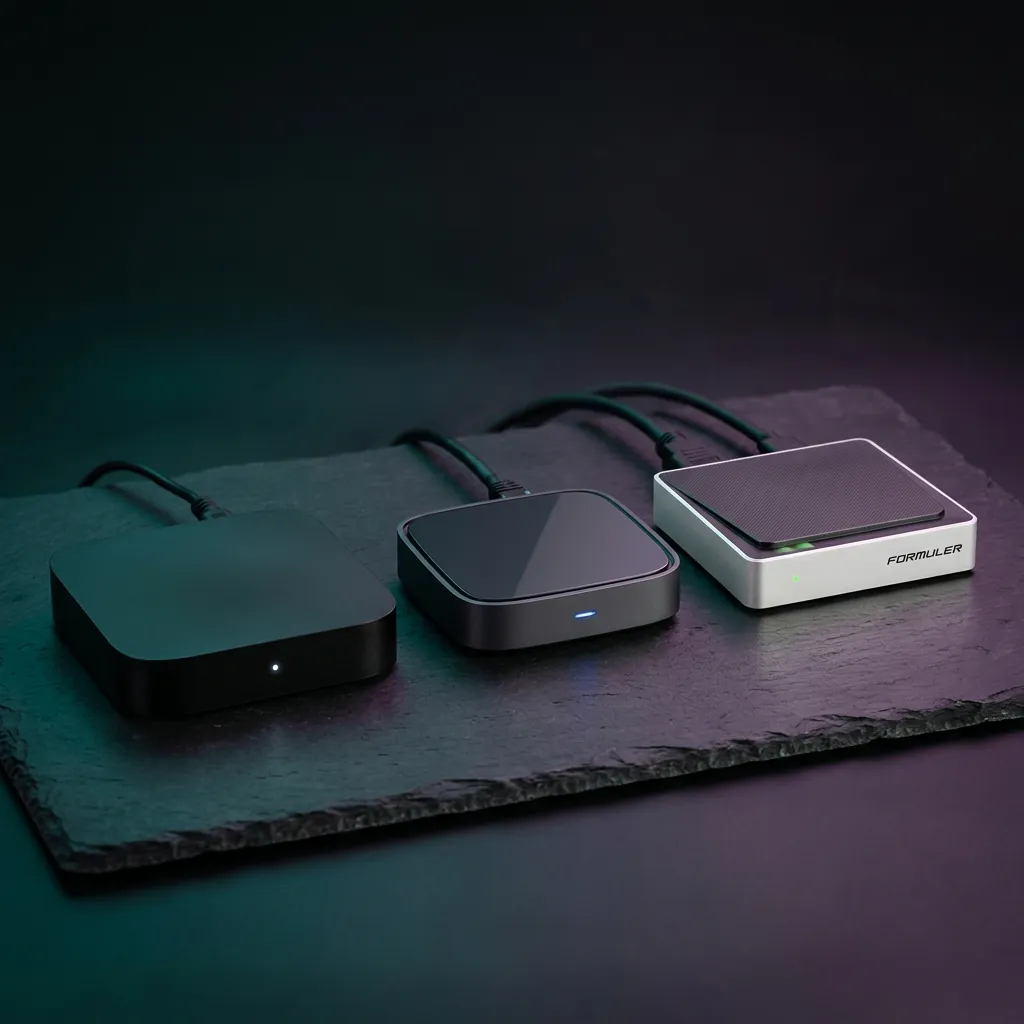
Firestick vs Dedicated IPTV Box: Which Is Better?
The Firestick is excellent value, but it is not the best option for everyone. Here is how it compares to dedicated IPTV boxes:
| Feature | Firestick | Dedicated IPTV Box |
|---|---|---|
| Price | £25–£60 | £50–£200 |
| Performance | Good for most use | Superior for heavy use |
| App support | Netflix, Disney+, etc. | IPTV-focused |
| Storage | 8–16 GB | 32–128 GB |
| Remote | Basic | Full-size with number pad |
| Best for | Casual IPTV + streaming apps | Dedicated IPTV viewers |
Our recommendation: start with a Firestick 4K Max. If you find yourself watching IPTV daily and want a more premium experience, upgrade to a dedicated box later. For viewers who also want Freeview recording capability, a Freeview recorder box might be a better investment, or look at our set-top box comparison for all hardware options in one place.
Troubleshooting Common Firestick IPTV Issues
Even with the right setup, you may encounter occasional problems. Here are the most common Firestick IPTV issues and their quick fixes:
Channels buffer or freeze frequently
Clear the IPTV app cache, switch to a wired connection, or try a different server within your IPTV provider's settings. If the issue persists, check our full buffering guide.
EPG (programme guide) is not loading
Most IPTV apps let you manually refresh the EPG. Go to Settings → EPG → Update/Refresh. Some providers take 24 hours to populate the EPG after a new subscription.
App crashes on startup
Clear the app data (not just cache) in Settings → Applications. If this doesn't help, uninstall and reinstall the app. Ensure your Firestick firmware is up to date.
No sound on certain channels
Go to your IPTV app's player settings and change the audio decoder from "hardware" to "software". Some channels use audio codecs that the Firestick's hardware decoder doesn't support natively.
Video is pixelated or low quality
Check your internet speed — you need at least 10 Mbps for HD and 25 Mbps for FHD. If speed is fine, the issue is likely the provider's server during peak hours.
For a deep dive into every possible IPTV issue and solution, our 10 IPTV buffering fixes guide covers everything from DNS changes to VPN optimisation. Before choosing a provider, always start with an IPTV 1-month trial to test reliability on your specific Firestick model and internet connection.